Breaking News
Showing posts with label English CorelDraw. Show all posts

Wednesday, May 17, 2017

How to Make Best Logo in CorelDraw

In making a logo we have to much really could give the meaning of the logo, so your logo we will have selling points, not just the design alone.

as in this tutorial I am going to make an extremely popular electronics logo, namely LG. GoldStar Electronics Co., is a chemical company first in Korea, the company established by Koo and Heo is now a global business.
How to make the LG Logo in CorelDraw?

Here I will explain the stages to create a logo in coreldraw solution specifically conceived for the LG logo, this tutorial is very easy to try it yourself at home, we wish you could enjoy it,

1. Open your CorelDraw. Click Start  >Programs > CorelDraw

2. Create a new worksheet by pressing CTRL + N or click New document.

3. By using the Ellipse Tool to create a circle,
Tipto make the circle round that actually you can add CTRL while creating a circle.

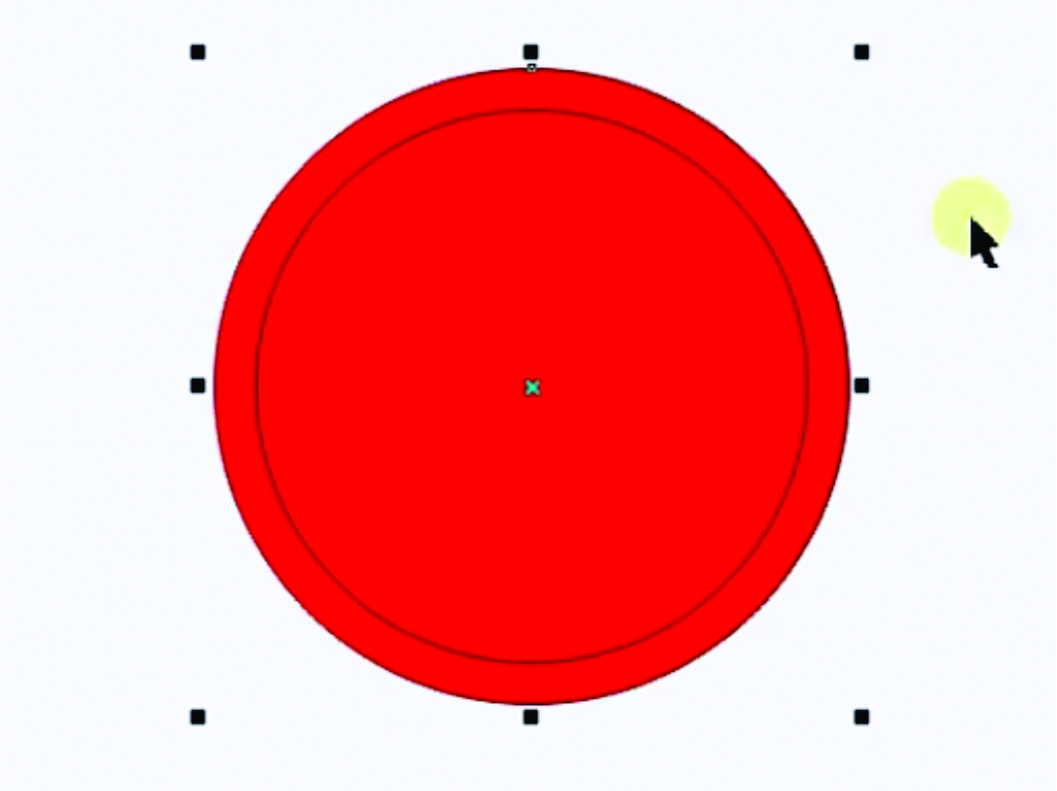
4. COPY and PASTE the circle already created then create, measuring became smaller and put it right in the middle. the large size of the circle to give the red color.

add Color


Resize a line outside the small circle into 16 Pt with white color.

5. to circle the white foxes become 1/3 circle click PIE then click MIRROR VERTIKALLY. as shown in the following figure.

6. Now we'll cut the tangent that is in the center of the circle, using the Shape Tool (F10) click on the section that I give a sign of blue. then click Break Curva to cut the line.

7. Central Line which is already cut off move the position to the center of the circle as in the picture below.

8. make the back small circle with the Ellipse Tool and give it a white

9. the end result of the tutorial CorelDraw made a 3d logo is as follows.


You Can Wach this Video


If you like with this article please share with your friends, and if there are any questions please ask, I am here only for you
Read more ...

Monday, May 8, 2017

10 MINUTE - Drawing an ANIME CARTOON in Coreldraw

If in the Indonesian language can be interpreted as follows


10 MINUTE - Drawing an ANIME CARTOON  in Coreldraw

Sorry if wrong.

Immediately we will enter the stage of our tutorial,

1. Open your COrelDraw, if you do not have can download at Corel.com
2. Create a New worksheet by entering CTRL + N or it can also click the New Document icon
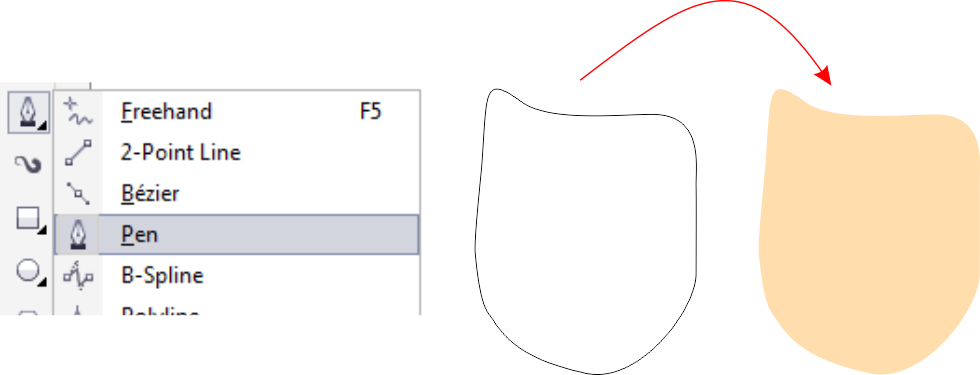
3. We will start the work using the Pen Tool
If you do not know how to use the Pen Tool you can learn it here, how to bend and create a good curve.
How to use the Pen Tool

4. First we will draw a face, create a line pattern like the following picture.
5. continue goto Hair, this dibaian we use two colors. If described will create a line like the following gamar
6. as I've said working with CorelDraw it makes smile-smile itself if the work we make menajdi look better.

Continue section of face, we will make Eyes, Eyebrows, telingga, Nose and also mouth, still use Pen Tool we can make all tesebut.
7. the next stage we will blind a grip, the pattern of the line that we make is as follows, and you tingga coloring it.
8. we have made a responsibility, go in the clothes, clothes here have 2 colors are gray and black


9. this 9th stage we will make the part of the outfit, and we use the coloring effect withInteractive Fill Tool Follow the draw command

For the right baian you add COpy Paste and give Mirror Effect

10. Continue under Pants and shoes, I will not explain in detail again, because I'm sure you've good at this stage

11. Now we will make a shadow, here we use a circle.
12. Mix all the parts from head to toe, and the result is as follows

Thank you for stopping by our CorelDRAW lesson, if any question can be kommen yes ..: D

10 MINUTE - Drawing an ANIME CARTOON  in Coreldraw

Read more ...

Friday, April 28, 2017

How to Draw a Cartoon School Children in the latest Corel DRAW

How to draw a cartoon school children in the latest Corel DRAW

We say Welcome to solid simple web blog that seeks to convey the designer's knowledge through writing and videos already made. After yesterday's make a CARTOON ELEPHANT and also a CARTOON CHARACTER NARUO this time we will make tutorial CorelDRAW create cartoon schoolgirls.

Why don't we learn to make cartoon school, this because yesterday my friends for help to make the BANNER LIBRARY-because the library just for kids so kcil certainly in the banner shall be cartoon school children so that the banner was impressedlive and also make the children happy, because looking at the cute pictures. :).

How to make cartoon akak SD at CorelDraw. Here is the tutorial

1. open the Program CorelDraw you first and then create a new document, it's up to want to measure how much. Yes, depending on the needs. :D

2. in this tutorial we'll focus USING the PEN TOOL because we will make a lot of lines, you can read what our tuorial how to create lines in CorelDraw it when you are ready and able to make a lot of line, now it's time we start this tutorial.

3. we will begin making the face first, here sepertri I say we use the Pen Tool and then create a field like the picture below.

4. information on the part of others namely hair, here I am still using the Pen tool, note the following hair design drawings,

5. in the 2nd phase 5 we will solve part of his face that is shadow's face and eyes nose and also a mult

in the picture below we create shape eyes nose.

and after the combined results with corelDraw face design are as follows. very easy is not it.

6. go on part six we make hand, this hand parts we use to the right and the left are also both have similarities. do Copy paste then give effect mirror.

7. make a very easy in CorelDraw we just use the Pen Tool and draw it like this, do not forget to connect the other end of the line with the first lines are made to individual images we make we can give color the inside and also the outside or this line.

9. in order for the cartoon school children we make nicer, we add a tie we also design with pen tool in coreldraw.

10. While up here alone, for part of the pants and legs I'm sure you could make her own, as many of you are designers:).

If you are interested in drawing cartoons of SCHOOL CHILDREN in the latest Corel DRAW I share Templatenya which I will send to Email you

FOR TEMPLATES, PLEASE LEAVE YOUR EMAIL

How to draw a cartoon school children in the latest Corel DRAW


Read more ...

Saturday, April 22, 2017

Drawing an Anime Cartoon in Corel Draw

Welcome back to the Master CorelDraw, this time we'll make a funny interesting character, in making the character is very easy once we simply connect multiple objects using a command chained part Well, how do I? let's refer to the  How to Draw Anime Funny By CORELDRAW.

1. Before you do this tutorial, of course, you have to open your CorelDraw, and then create a new worksheet by pressing CTRL + N 
2. Now create sebuh field Circles and rectangles as shown below. then mash the following picture with the command no 3 is Well.


3. Now create squiggle lines with the following command

I need not explain again how this use, since you can experiment, so that you have a high creativity,

4.  Further to the field of feet and hands.


5. Now we will load the tie, to make this tie is very easy to just use the Polygon tool then I made two types of areas, namely in terms of six and a pentagon, 

Further to the command Shape tool  I pulled the bottom in terms of 5, continued with the color gave the Black, and the results are as follows.


6. To the eye, just use circles only,
 and the result of this tutorial is as follows.


we say thank you for using the tutorial  How to Draw Anime Funny By CORELDRAW this as a learning Mendia you, may be useful,


Read more ...

Friday, April 21, 2017

How To Make Triangulation Art In Corel DRAW x7 x6 x5 x4

okay back again we tutorial CorelDraw, on this occasion we will learn to make  Triangulation   using CorelDraw. what it  Triangulation? a work of art that combines field opasiti triangle with a different color, but this color opasiti not have a long distance so that the dimensions of color possessed has its own appeal as a matter of design. haha this is just my own sense of understanding, without any reference :) do not be taken seriously yes ...
How to Make Triangulation
I make it very easy following the tutorial

How to Make Triangulation With Ease


1. Open your CorelDrwa, here I use CorelDraw x7, yet quiet this tutorial can still be used for the legacy versei-x8 x3. ( Hopefully )
How to Make Triangulation
2. then activate the Rectangle tool to create a rectangular field.

3. Now activate the Mesh Fill Tool To make the field into the winding and can be colored in some parts.
How to Make Triangulation
4. The added number of points his Mesh Fill Tool with Double-click on the image side of the rectangle so that it becomes as shown below
How to Make Triangulation
5. that sat coloring becomes more fragmented again you do some of these stages
How to Make Triangulation

6. Now we get into the dyeing phase using a combination of colors as follows. if you use other colors, are allowed, depending on individual taste

7. afterwards at the point Yag shapes you created earlier we paint one by one
and the result is as follows
How to Make Triangulation

8. Further we will create a triangular lot and we arrange such
How to Make Triangulation
Use the sample mesh fill color to color the triangle that we have made

hailnya is like this image
How to Make Triangulation
very easy to right. 
Last stage adalalah I return to you, how you will arrange of the triangular field


How to Make Triangulation With Ease

Read more ...
Designed By Published.. Blogger Templates